Guide
Playing Chalo Jantar Mantar on your phone: controls, settings and fixing lag

Sandeep Sahu
· 6 min read
Most people who play Chalo Jantar Mantar play it on a phone, not a computer. I write the game on a computer, but every change gets tested on my iPhone before it goes live, and phone players have shaped the game more than anyone. This guide covers the touch controls, the settings worth knowing and, because it is the question I hear most, what to do when the game lags.
Getting the game on your phone
There are three ways, and all of them are free:
- In the browser. Open mantarjantar.in in Chrome or Safari and tap PLAY. There is nothing to install and no sign-up.
- The Android app. A small download (about 1.2 MB) from the app page. It opens full screen, turns sideways by itself in a match, and always loads the latest version of the game, so it never needs updating. In the app, 🤖 Practice works even without internet.
- On an iPhone. In Safari, tap Share and then "Add to Home Screen". The game then opens from its own icon, like an app. The menu shows a small bar that explains the steps.
Sideways or upright?
Both work, but I recommend sideways. Holding the phone sideways shows far more of the city and gives the buttons room under your thumbs.
- In the Android app, a match turns the screen sideways on its own. The 🔄 button next to the camera buttons flips between sideways and upright, and the game remembers your choice.
- In a phone browser, 🔄 first goes full screen, because browsers only turn the screen in full screen.
- On an iPhone, Safari can't turn the screen for a web page, so simply turn the phone yourself (with rotation lock off).
- If you prefer upright, everything is still there, just more compact. In a phone browser, a tip once a day reminds you that turning the phone shows more.
The touch controls
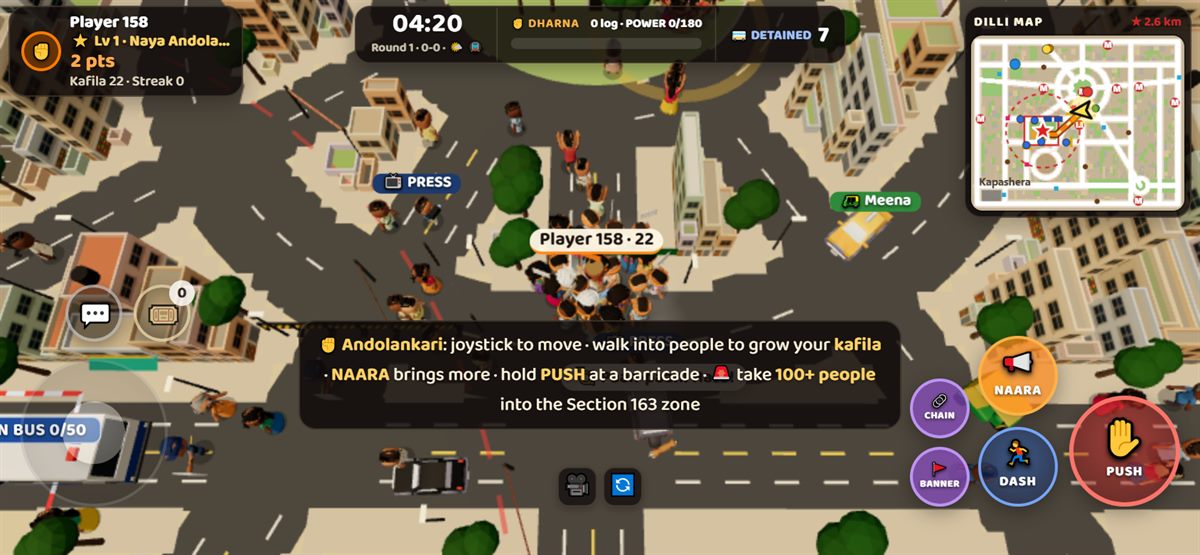
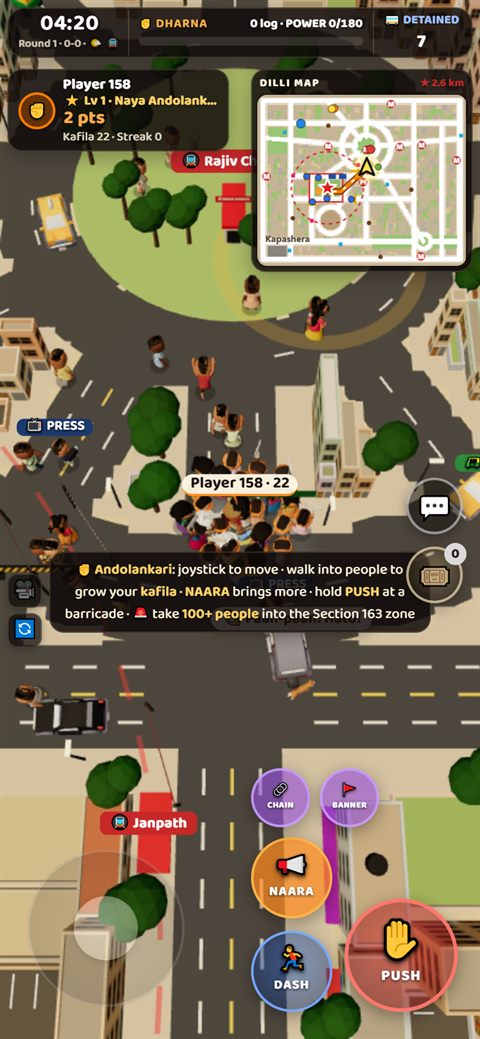
Moving. Put a finger down anywhere on the city and the joystick ring comes to it; drag to steer. As an Andolankari, drag far past the ring to dash (the ring glows orange). When your finger is lifted, the ring waits, faded, in its corner. If you prefer a joystick that stays in one place, switch Joystick in Settings from "kahin bhi" (anywhere) to "fix".
The buttons on the right change with your side. For the Andolankari:
| Button | What it does |
|---|---|
| NAARA | Raises a slogan that brings people out of the shops around you. The button lights up again when it is ready. |
| PUSH | Hold it at a barricade to push it over. The bigger your kafila, the harder the push. |
| DASH | A short sprint, to get away or to catch up (or drag the joystick far). |
| CHAIN | A human chain: with 10 or more people, no lathi can pull the leader out. |
| BANNER | Plants your dharna banner. |
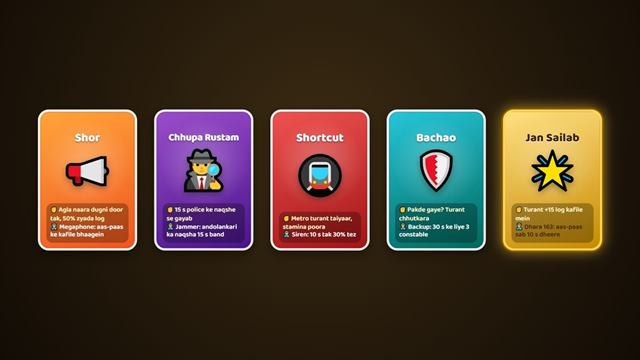
| 🎟️ | Opens your Jugaad cards in an online match. |
The police get lathi, tear gas, the water cannon, barricades and the internet shutdown instead; the Dilli Police guide explains when to use each one. When you stand close to a 📺 reporter, an 🛺 auto or a 🚇 metro entrance, an extra button appears for the interview or the ride.
The camera. Pinch with two fingers to zoom out and see more streets. The 🎥 button opens the camera buttons for the angle and a reset, and folds them away again a few seconds after you last use them.
The map. The Dilli map sits in the top corner. Its title shows how far you are from Jantar Mantar and, in an online match, your ping (more on that below).
The settings worth knowing
Tap ⚙️ on the menu. Five switches matter on a phone:
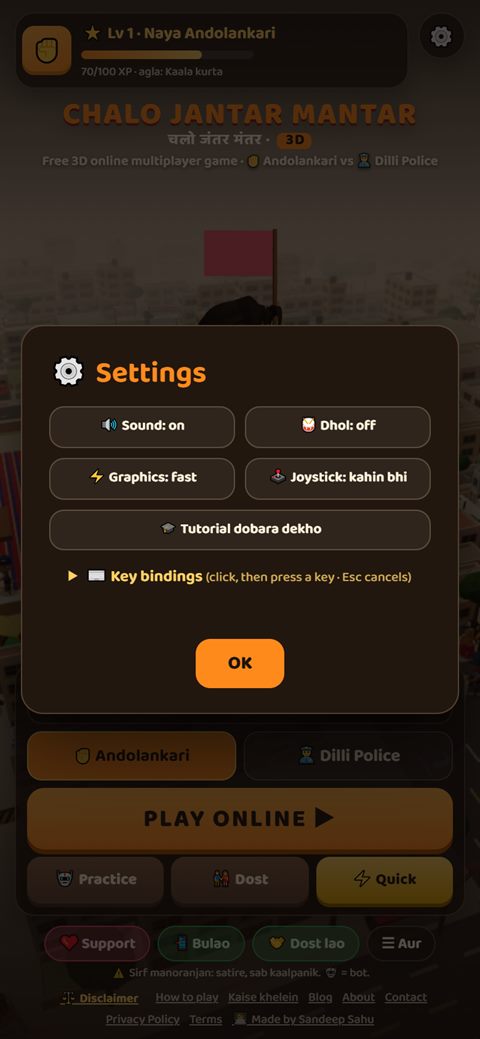
- Sound turns all sound on or off.
- Dhol turns the drums and the crowd's noise on or off, but keeps the other sounds.
- Graphics: fast or high. Phones start on fast. Fast graphics draw 30 frames a second and use simpler models for people far from the camera. If your phone is new and stays cool, try high. If it gets warm or stutters, go back to fast.
- Joystick: "kahin bhi" (anywhere) or "fix", as above.
- Tutorial dobara dekho plays the first-match tutorial again, which is handy if a friend is playing on your phone for the first time.
Why does it lag, and what can you do?
"Lag" is really two different problems, and they have different fixes. I have run into both myself.
1. The phone is working too hard
You will notice this as stutter, a choppy picture or a warm phone, especially in big crowds. When the new 3D characters arrived in October, my own iPhone ran warm in large matches: 400 people on screen came to about 1.2 million triangles in every frame, 60 times a second. Since then the game:
- draws 30 frames a second on fast graphics (the game runs on the clock, so nothing moves slower);
- uses a simpler copy of each body and hairstyle for people away from the camera, while players and anyone close by stay in full detail;
- draws fewer of the far-off passers-by and other kafilas.
The same 400 people are now about 0.47 million triangles. What you can do: keep graphics on fast, close other apps, and remember that battery saver or Low Power Mode slows every game down. If the phone is already hot, let it cool for a few minutes.
2. The connection is slow
This feels different: you press NAARA and it happens late, or people jump about. On 31 October I saw a ping of over 500 ms on my own phone right after an update, and my first thought was that I had broken something. I hadn't. Some Indian mobile networks were sending the connection all the way to Europe and back. I changed how a match connects, so it now takes a much shorter way.
You can see your connection in the map's title: 📶 72ms and so on. Green (under 150 ms) is fine, amber (under 300 ms) is playable, and red means the connection is the problem, not the phone. If it is red, switch between Wi-Fi and mobile data, or move to a spot with a better signal. And if you just want to practise, 🤖 Practice plays against bots on your phone itself, with no connection to wait for.
What phone players changed
A lot of the game on phones exists because players told me something was hard:
- The floating joystick. The first joystick sat in a fixed corner. Watching people play showed it should come to the finger instead.
- A lighter screen. The panels became see-through, the clock and dharna bar became one slim bar, and the camera buttons fold away, so more of the city shows.
- "Ye aap ho" (this is you). A spotlight on your own player at the start, so nobody has to hunt for themselves in a crowd.
- The ping on the map, because the player list that showed it is hidden on phones.
- A simpler menu. Players said the old menu was confusing, so it now has your character and one big PLAY button, and it fits on one screen even on a short phone held sideways.
If something still feels wrong on your phone, please tell me on the contact page, and mention your phone's model. That one detail usually tells me where to look.